
Supplement scanner
Point at a bottle.See what's inside.
Scan a supplement's barcode or photograph its label. Suppin finds it in its catalog, or looks it up online and saves it just for you.
Educational guidance, not medical advice.

How it works
- 1
Point the camera
Aim at the barcode, or take a photo of the front label. You can also pick a photo you already took.
- 2
Let it identify the product
A barcode is looked up in the catalog. A photo is read and matched, or looked up online.
- 3
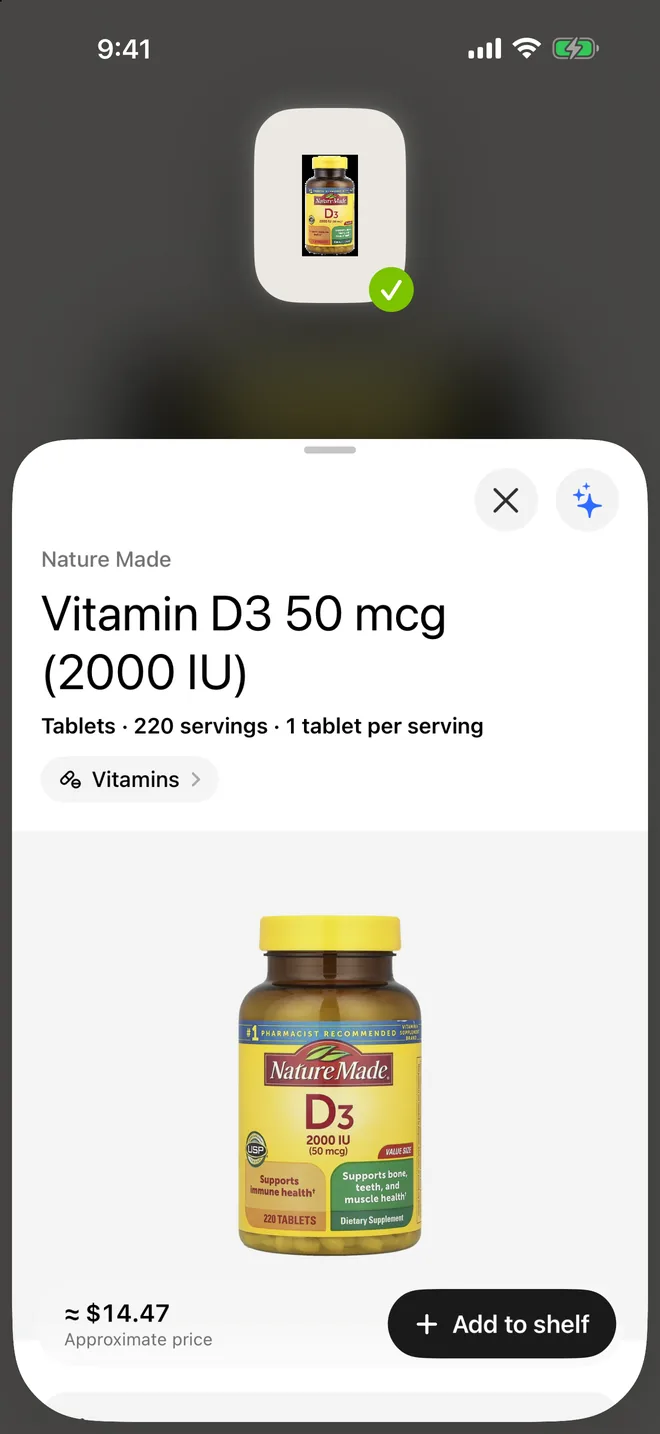
Open the product page
See what's inside, the quality score and whether it suits you.
- 4
Add it
Put it on your shelf or in your routine, with a count of how many are left.
What the scanner does
The scanner is the quickest way to tell Suppin what you already own. Point your iPhone at a supplement: if the barcode is one the catalog knows, the product page opens straight away. Otherwise take a photo of the front label. Suppin reads it, checks it against a catalog of over 17,000 products, and if it isn't there, looks the product up online and builds a product page saved just for you. Only you can see a product made from your scan.
Scan a whole shelf, one bottle after another
You don't have to wait for each result. Choose “Scan your shelf”, photograph each product's front label in turn, and Suppin identifies them in the background. Each one appears on your shelf as soon as it is recognised. It is the easiest way to get a kitchen cupboard of bottles into the app in a few minutes, so your routine can be built around what you already have instead of suggesting the same nutrients again.
What you see after a scan
A scanned product opens on its product page, marked either as found in the catalog or as saved for you. The page lists what's inside per serving and the label's suggested use, a quality score out of 10 with its breakdown, and a “For you” verdict based on your answers: whether it suits you, needs a professional's review, or isn't recommended for you, with the reason. From there you can add it to your shelf, add it to your routine, or ask the assistant about it.
Scan history and your own photos
Every scan is kept in your scan history, so you can find a product again without rescanning it, and you can remove scans you no longer need. Photos you scan are kept with your account behind unlisted links, not shown to anyone else. If the picture on a product you scanned isn't a good one, you can retake it. Barcode lookups only search the catalog, so they work even if you haven't allowed the AI features.
Limits worth knowing
Reading a photo uses AI, so photo scans start only after you allow the AI features on the “Suppin uses AI” screen. A blurry or partial photo may not be recognised; the app then asks for a clearer picture of the front label. A product page built from a scan is assembled from the label and public information found online and can be incomplete, so always check the label on the bottle itself before you take anything.
Questions about supplement scanner
Yes. Scan the barcode or photograph the front label, and Suppin finds the product in its catalog or looks it up online and saves it for you. With “Scan your shelf” you can photograph bottle after bottle while earlier ones are identified in the background, and each lands on your shelf.
Yes. Point the camera at the barcode and, if the catalog knows that code, the product page opens immediately. If it doesn't, the app asks you to take a photo of the front label instead, which is then read and matched or looked up online.
Suppin looks it up online from your photo and builds a product page saved just for you, with what's inside and how to use it. Only you can see it. Because it is built from the label and public sources, check it against the bottle before relying on it.
Photo scans do: the label photo is read by an AI service, which is why the app asks for your permission first on the “Suppin uses AI” screen. Barcode lookups don't use AI; they only search Suppin's catalog. You can turn the AI features off in Settings at any time.
More answers on the FAQ page.